KDDI Prepaid eSIM
What is an eSIM?
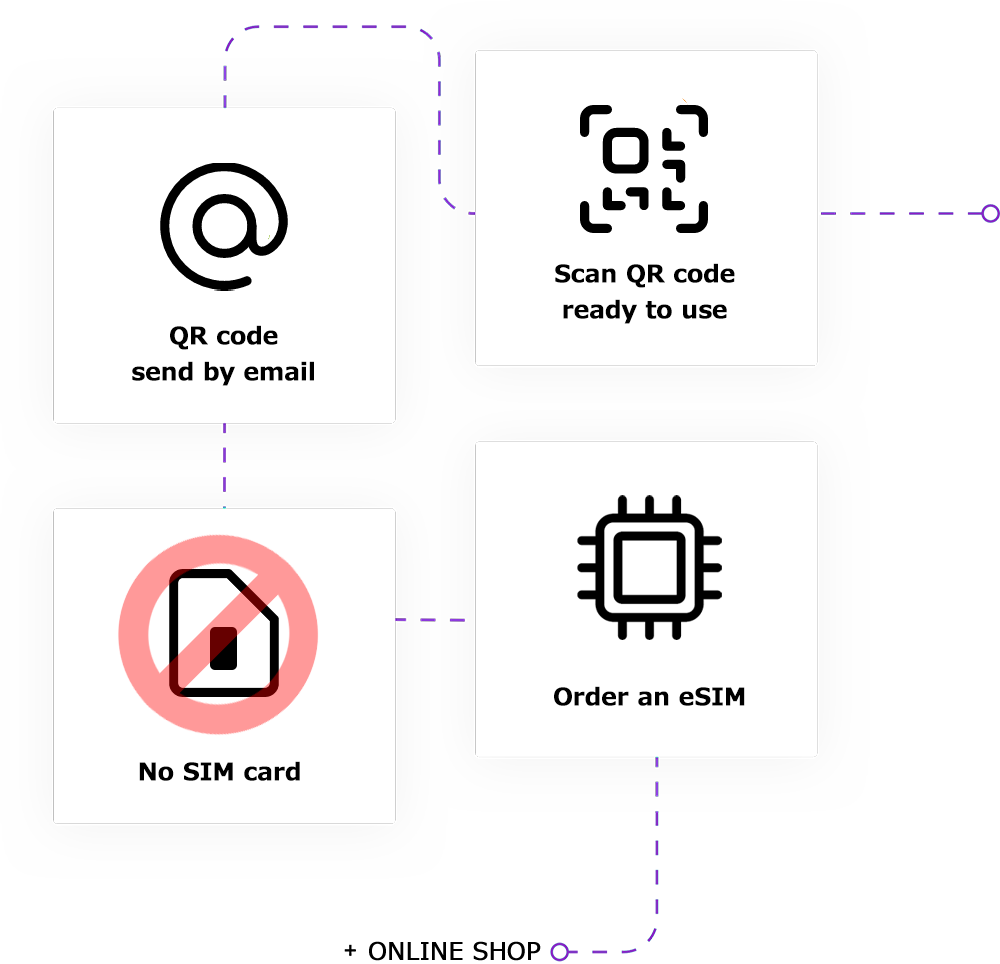
eSIM stands for Embedded SIM. While a regular SIM card must be inserted into a device, an eSIM is built into the device and never needs to be removed.
You can start using it immediately by signing up for an eSIM MOBILE plan.
In particular, if your device supports specifications such as DSDS (Dual SIM Dual Standard) or DSDV (Dual SIM Dual Voltage), you can sign up for a second data plan with the eSIM in addition to your regular SIM card (i.e., your regular data plan) and use them simultaneously.
How to check on your smartphone
How to check if your smartphone supports eSIM
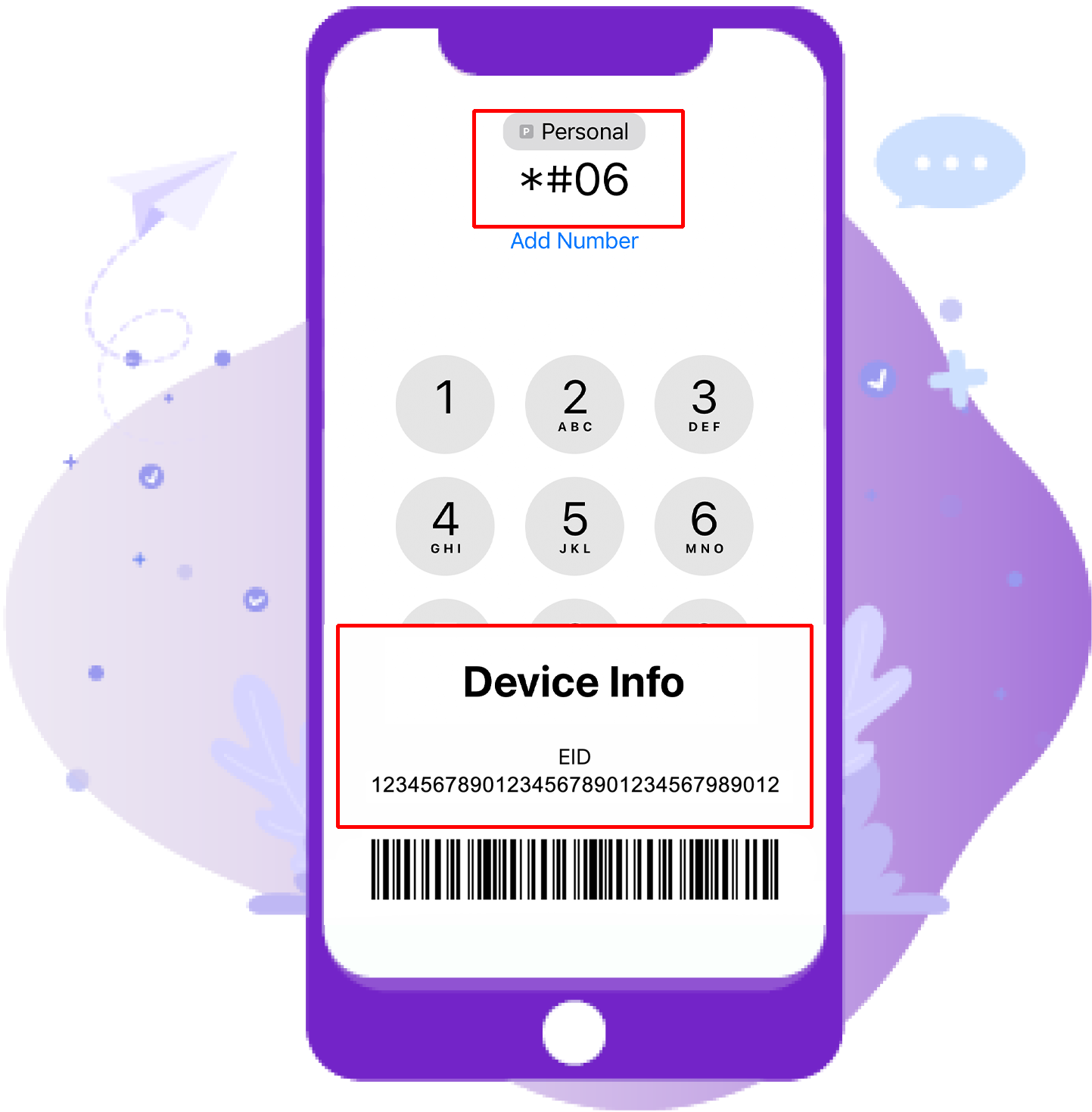
① Enter *#06# on the dial.
② Check your EID
※Required for SIM unlocking.
※If you have an EID number, your phone supports eSIM.
(China/Macau/Hong Kong and dual-SIM models are not supported.)
eSIM-compatible smartphones
iPhone models with eSIM:
iPhone XS, iPhone XS Max, iPhone XR and later
Android smartphone models with eSIM:
Fairphone 4、 FUJITSU Arrows A101 FC、 Google Pixel 3、 Google Pixel 3a、 Google Pixel 4 XL、 Google Pixel 4、 Google Pixel 4a、 Google Pixel 5、 Google Pixel 6 Pro、 Google Pixel 6、 Google Pixel 6a、 Google Pixel 7 Pro、 Google Pixel 7、 Honor Magic 4 Pro、 Huawei Mate 40 Pro、 Huawei P40 Pro、 Huawei P40、 Motorola Razr 2019、 Motorola Razr 5G、 Nokia G60、 Nokia X30、 Nuu Mobile X5、 Nuu X5、 OPPO A55s 5G、 OPPO A73、 OPPO A79 5G、 Oppo Find N2 Flip、 Oppo Find X3 Pro、 Oppo Find X3、 Oppo Find X5 Pro、 Oppo Find X5、 OPPO Reno 10 Pro 5G、 Oppo Reno 5 A、 Oppo Reno 6 Pro 5G、 OPPO Reno7 A、 OPPO Reno9 A、 Planet Computers Gemini PDA、 Rakuten Big‑S、 Rakuten Mini、 Rakuten Mobile Big、 Rakuten Mobile Big-S、 Rakuten Mobile Rakuten Mini、 Redmi Note 10T、 Redmi Note 11Pro 5G、 Samsung Galaxy Fold 3、 Samsung Galaxy Note 20 Ultra 5G、 Samsung Galaxy Note 20、 Samsung Galaxy S20 Ultra、 Samsung Galaxy S20、 Samsung Galaxy S20+、 Samsung Galaxy S21 Ultra 5G、 Samsung Galaxy S21、 Samsung Galaxy S21+ 5G、 Samsung Galaxy S22 Ultra、 Samsung Galaxy S22、 Samsung Galaxy S22+、 Samsung Galaxy S23 Ultra、 Samsung Galaxy S23、 Samsung Galaxy S23+、 Samsung Galaxy Z Flip、 Samsung Galaxy Z Flip 3 5G Fold、 Samsung Galaxy Z Flip 3 5G、 Samsung Galaxy Z Flip 4、 Samsung Galaxy Z Flip 5G、 Samsung Galaxy Z Flip、 Samsung Galaxy Z Fold 2 5G、 Samsung Galaxy Z Fold 4、 Samsung Galaxy Z Fold2 5G、 Samsung Galaxy Z Fold3 5G、 Samsung Galaxy Note 20 Ultra 5G、 Sharp AQUOS R7、 Sharp AQUOS sense4 lite、 Sharp AQUOS sense6、 Sharp AQUOS sense6s、 Sharp AQUOS wish、 Sharp AQUOS wish2、 Sharp AQUOS zero6、 Sony Xperia 1 IV、 Sony Xperia 10 III Lite、 Sony Xperia 10 IV、 Sony Xperia 5 IV、 Xiaomi 12T Pro、 ETC
① Enter *#06# on the dial.
② Check your EID
How to set up eSIM on your iPhone
1 Tap Mobile Data in Settings
2 Tap Add eSIM
3 Tap 'Use QR Code'
4 Method 1. Scan the QR code received in your email
4 Method 2. When you want to manually enter your details, enter the information in your inbox.
5 Go to Settings, select Mobile Plans, then select your eSIM line. Make sure data roaming is on.
How to set up eSIM on Android
Note: This may vary slightly depending on the Android model.
1 Tap SIM Cards and Mobile Networks in Settings
2 Tap eSIM - Activate
3 Tap Add SIM
4 Tap Set up eSIM
5 Method 1. Scan the QR code received in your email
5 Method 2. To enter the activation code manually, tap Enter Activation Code
5 Method 3. Scan from a photo
6 Tap Advanced Settings under Mobile Networks
7 To disable data roaming, tap Please set it to ON.
eSIM Instructions
| Type | eSIM |
|---|---|
| Activation Time | Fastest 30 minutes |
| Activation Method |
After signing the contract, simply scan the QR code to begin using the service *A Wi-Fi connection is required to receive emails. |
| Contract Administrative Fee | Free |
| Items You Will Need |
Device to use with eSIM Here Wi-Fi or other network |
| Notes |
This is an eSIM for data communication only. Voice call and SMS functions are not available. - If fraudulent use is found, your contract will be terminated. Refunds are not available. - In Low-Speed Mode, unlimited use is possible at xxx kbps speeds after the daily data limit has been reached. - Once you have scanned the QR code, do not stop or erase it midway. Activation may not be completed, but if you stop midway, you will not be able to scan it again. - Please scan in a location with good internet access. Free Wi-Fi at airports can have unstable connections, so we recommend completing the setup before you depart. - Do not scan the QR code with the camera; instead, scan it from Settings > Add eSIM card. |
※ About using eSIM
2. Only eSIM-compatible devices can be used.
Press *#06# to make a call. If the EID number is displayed, your device is eligible.
3. A QR code will be sent by email.
4. Please check your network environment during setup.
If the installation is interrupted midway through scanning the QR code due to poor network conditions, the message Not activated will be displayed and you will not be able to set up via the QR code.
5. Please do not stop or cancel the activation process.
6. If the message Not activated is displayed, manual setup is possible. Please refer to the eSIM setup guide below and proceed with the setup.
7. After setup, the status before departure will be Activating and On-activation completed. (If you are activating locally, please turn on the registered eSIM and data roaming in Settings.)
8. Even if the screen displays Activating or Unable to activate, you can complete the activation by picking up a signal locally. (Once complete, it will display On. If it is Off, please turn it on in Settings.)
9. Once installed, the QR code cannot be reinstalled.
10. Even if you experience problems with the eSIM during setup, please do not delete it.
Please note that we cannot reissue or provide refunds if you delete the eSIM.
格安海外eSIM(スマホ)ならSAMURAI SIMInformation
Copyright © https://jpsim.info. All Rights Reserved.